Registration
If you received an invitation to Crewlap Back Office, create your account on the Registration page.
You need an invitation before you can register. The invitation is connected to your email address.
Before You Start
Make sure you use the same email address that received the invitation.
If you already have a Crewlap account, do not register again. Use Login. If you have access to more than one organization, you can switch between organizations after you sign in.
If you opened Registration by mistake, click Login next to Have an account?.
Step 1. Enter Registration Data
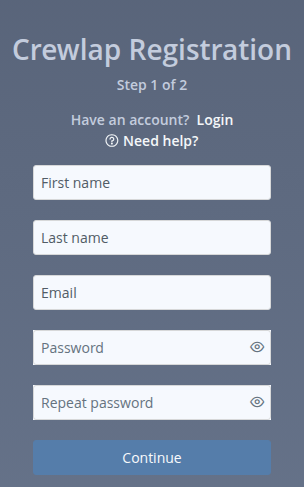
Fill in the registration form:
First name: your first name.
Last name: your last name.
Email: the email address that received the invitation.
Password: the password you will use for back-office login.
Repeat password: the same password again.
The password must follow the Password Rules.
Click Continue.
Step 2. Enter the PIN Code
Crewlap sends a one-time PIN code to your email address.
Open your email inbox.
Copy the PIN code from the Crewlap email.
Enter the code in the PIN code field.
Click Verify.
After the code is accepted, Crewlap creates your account, signs you in, and opens the application list.
Required Information
Crewlap requires first name, last name, email, password, and repeat password on the first step.
If a required field is empty, Crewlap highlights it and asks you to fill it in.
If Registration Does Not Continue
Check these points:
The email address must be the one that received the invitation.
The invitation must still be active.
The password must follow the Password Rules.
The repeat password must match the password.
The PIN code must be the latest code from Crewlap.
If registration still does not work, ask your manager or Crewlap administrator to check that your invitation is active.