Password Reset
If you forgot your Crewlap Back Office password, reset it with your registered email address and a one-time PIN code.
Use password reset only for your own account. If you do not have an account yet, use Registration.
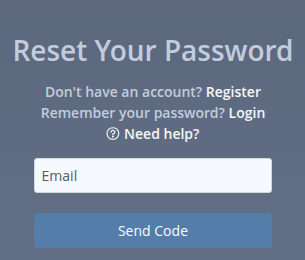
Step 1. Request a PIN Code
Check that the email address on the Login page is correct.
Enter your email address in the Email field.
Click Send Code.
Crewlap sends a one-time PIN code to your email address.
Step 2. Set A New Password
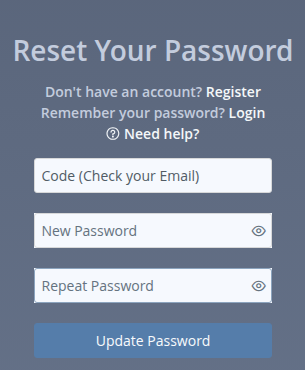
After you receive the PIN code:
Enter the PIN code in the Code (Check your Email) field.
Enter your new password in the New Password field.
Enter the same password in the Repeat Password field.
Click Update Password.
The new password must follow the Password Rules.
After a successful password reset, Crewlap returns you to Login. Sign in with your email address and new password.
If the PIN Code Does Not Work
Try these steps:
Use the newest Crewlap email. Older codes may no longer work.
Copy the code exactly as it appears in the email.
Make sure there are no extra spaces before or after the code.
Start password reset again if the code has expired.
Password Reset Problems
If the email address is empty or invalid, Crewlap highlights the field.
If the new password does not follow the Password Rules, Crewlap shows a message near the password field.
If the two password fields do not match, Crewlap shows Passwords do not match.
If you still cannot reset your password, contact your manager or Crewlap administrator. Ask them to check that your account exists and is active.