Menu
The main menu lets you open the Crewlap pages that are available to your account.
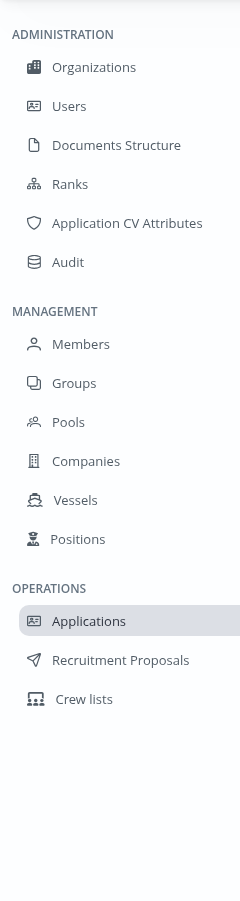
The menu is shown after you sign in. It is grouped by work area. You may not see every item listed here. Crewlap only shows menu items that match your permissions and the organization you are working in.
Open A Page
Find the work area in the left menu.
Click the page name.
Wait for the page to load.
If a page or menu item is missing, check that you are in the correct organization and that your account has the required access.
Recently Viewed
The Recently viewed section appears above the main menu. It contains recently opened applications, companies, vessels, positions, pools, crew lists, and their lists, including Recruitment Proposals. The current page is not shown. Reopening an item moves it to the top rather than adding a duplicate.
Click a row to return to that object or list. List entries preserve filters, sorting, pagination, and expanded pool nodes. Different filtered visits to the same list can appear separately. Hover over a row to read its full label and filter summary.
Application list entries show whether you used Basic Search or AI Assisted Search. Opening an AI search runs it again with current data and your current access. If you continue the conversation, Crewlap keeps the original recent entry as well as the updated search.
The section shows five rows before scrolling. Click its heading to collapse or expand it. On a small screen, open the main menu to access it. Browser Back and Forward continue to work normally.
History keeps up to ten entries and is shared by all browser tabs in your current session. Reloading a page keeps it. Signing out, changing organization, or changing impersonation clears it. If a saved filter is no longer available, Crewlap restores the remaining filters and shows a warning.
If a recent record was renamed, the link follows its new name. If it was removed or is no longer available, Crewlap opens the related list and shows a message.
Administration
Administration pages are used for system setup and control.
Organizations: manage organizations and their users.
Users: manage back-office user accounts.
Global Attachments Management: review shared or unknown attachment cleanup candidates.
Seafarer Technical Graph: download metadata-only relationship data for support and debugging.
Documents Structure: maintain document categories, groups, types, and subtypes.
Vessel Document Types: maintain the choices used when adding documents to vessels.
Ranks: maintain rates, departments, and ranks.
Application CV Attributes: review and configure CV attribute metadata.
Audit Log: review back-office request diagnostics.
Management
Management pages are used to maintain the data that supports daily operations.
Members: manage users in the active organization.
Groups: manage access groups and permissions.
Pools: manage pools used for visibility and sharing.
Companies: manage client or fleet companies.
Vessels: manage vessels and vessel groups.
Positions: manage vessel positions.
Operations
Operations pages are used for applications, proposals, and crew planning.
Applications: search, review, and manage seafarer applications.
Recruitment Proposals: review recruitment proposals and their status.
Crew lists: work with crewlists and assignments.
Access And Visibility
If you have access to more than one organization, the active organization affects what you see. Switch to the correct organization before opening a page if the expected records are missing.
If you open a page without enough permissions, Crewlap shows an access denied page instead of the requested page.